

In order to have your Map properly working, you need to generate an API key first and add it to the Google Maps API Key field in the Map section.
To generate an API key, you will need to carry out the following:
1. Access the Google Cloud Console: https://console.developers.google.com/
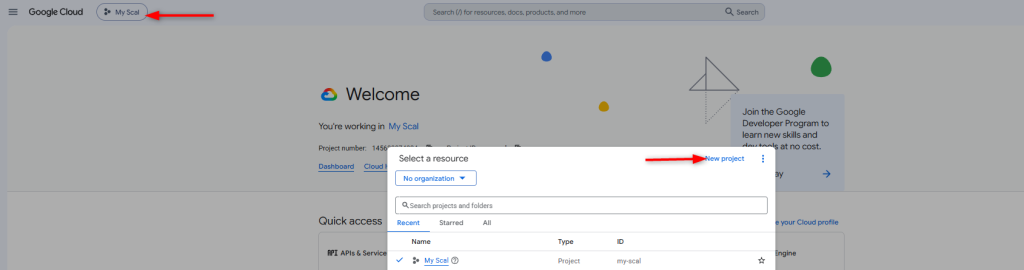
2. Select or create a project from the dropdown illustrated below
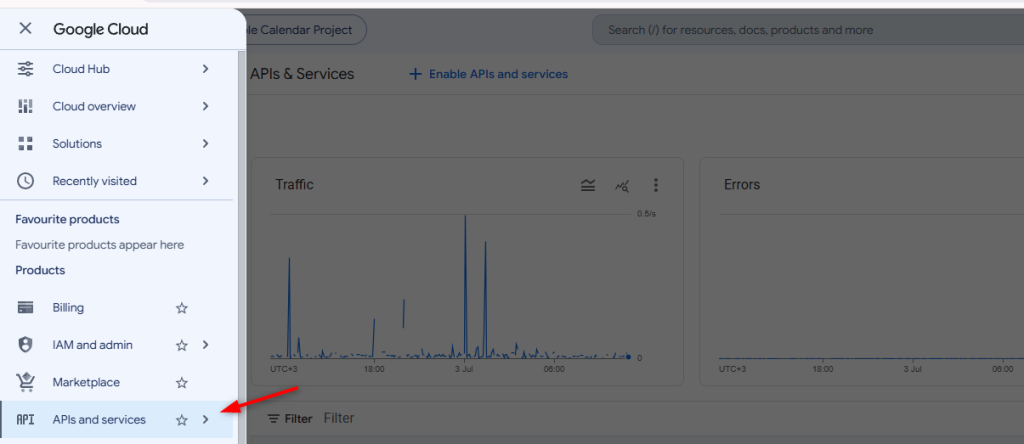
3. Head over to the APIs and Services section
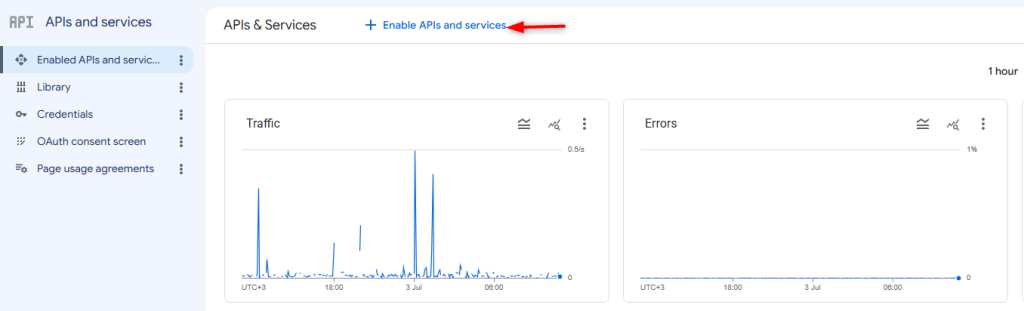
4. Click on the “Enable APIs and Services” link
5. Search for both the “Google Maps Geocoding API” and “Maps JavaScript API”, and proceed to enable them
6. Configure the billing details required by Google
7. Navigate to the Credentials section
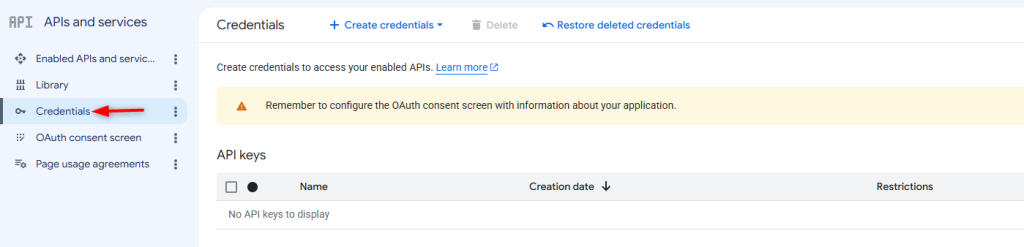
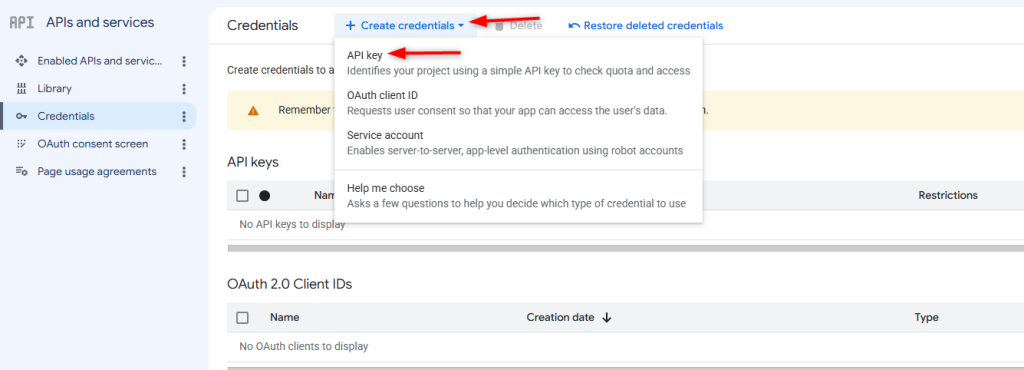
8. Click on the “Create credentials” link and select the API Key option from the dropdown rendered
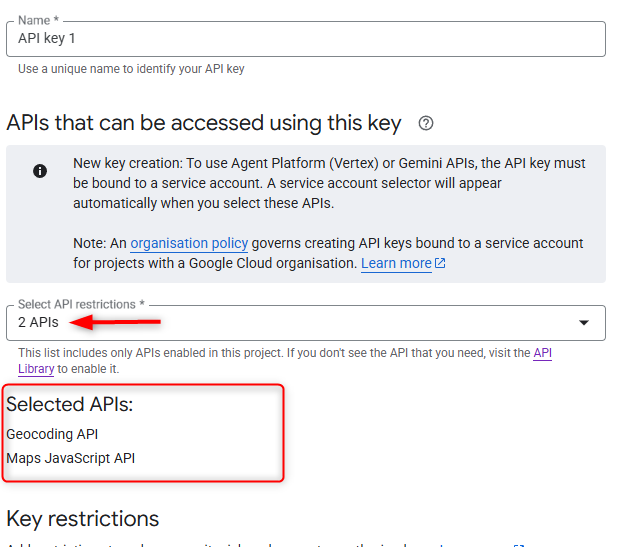
9. Select to restrict the “Geocoding API” and “Maps JavaScript API” within the “Select API restrictions” field
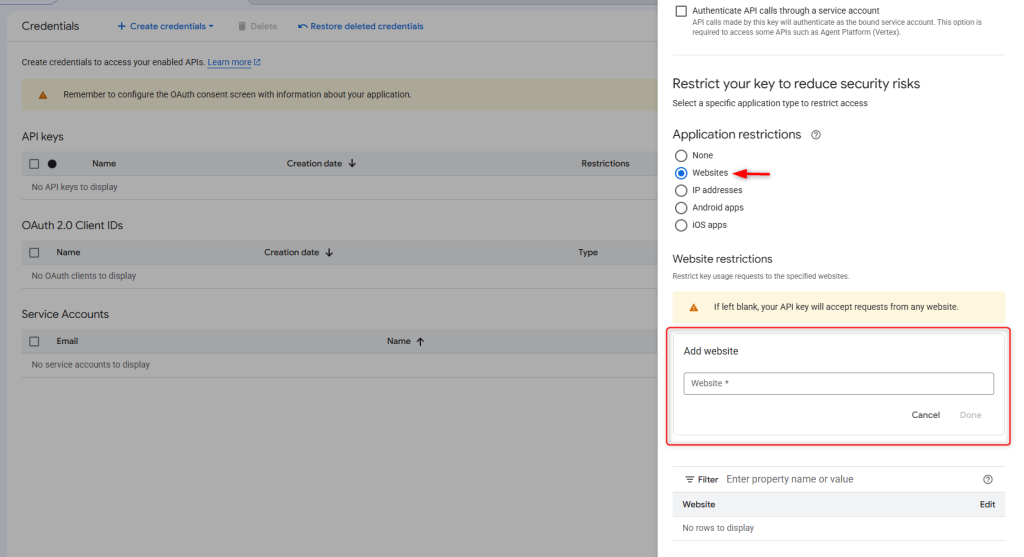
10. Set the Application restrictions to “Website” and add your site URLs, including your .myshopify.com domain. For example, you should include both myCustomDomain.com/* and shop1.myshopify.com/* as valid domains. Please ensure that you follow this format while adding the URLs.
11. Click on the “create” button to generate the API key
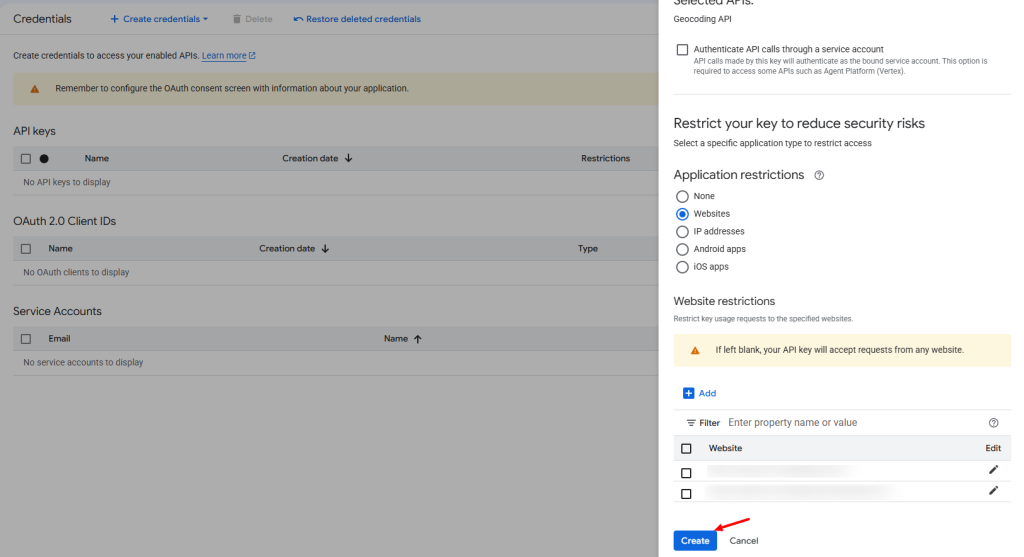
On the next screen, you will then be provided with the newly generated API key.
With the above carried out, you may now proceed yo add your Key to the Map section, so that the map is now properly rendered.