

From the Theme Editor, navigate to Header > Announcement bar.

The Announcement Bar lets you display one or more scrolling announcements at the top of your store. It’s ideal for promoting sales, highlighting new arrivals, sharing shipping information, or displaying other important updates.
Announcement Bar General Settings
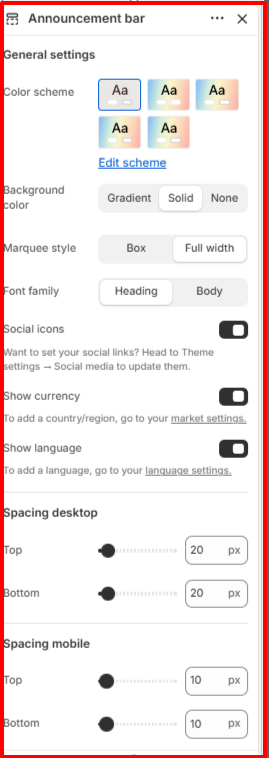
Color Scheme: Enables you to choose a predefined color scheme for the announcement bar to match your store’s branding.
Background Color: Choose how the announcement bar background is displayed.
Marquee Style: Control how announcements are displayed. Box displays announcements within a contained area, whereas Full Width stretches announcements across the entire width of the page.
Font Family: Here you can choose the font style used for the announcement text.
Social Icons: Enable this option to display your store’s social media icons in the announcement bar. Note that social media links are managed under Theme Settings > Social Media.
Show Currency: Enable this setting to display the currency selector in the announcement bar. Note that, to support multiple currencies, configure your markets in Shopify Markets.
Show Language: Enable this option to display the language selector. Note that Languages must first be added through your store’s language settings.
Spacing (Desktop): Adjusts the vertical spacing for desktop devices.
Top – Adds padding above the announcement bar content.
Bottom – Adds padding below the announcement bar content.
Spacing (Mobile): Adjust the vertical spacing for mobile devices.
Top – Adds padding above the announcement bar content.
Bottom – Adds padding below the announcement bar content.
Configurable Blocks in the Announcement Bar
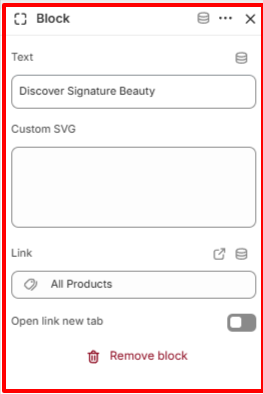
Each Announcement Block represents a single announcement displayed within the announcement bar. You can add multiple blocks to showcase different promotions or messages that scroll across the top of your store.
Text: Enter the announcement message you want to display.
Custom SVG: Add custom SVG code to display an icon before the announcement text.
Link: Assign a destination to the announcement. Customers will be redirected to the selected page when they click the announcement.
Open Link in New Tab: Enable this option to open the linked page in a new browser tab instead of replacing the current page.