

The Typography settings allow you to customize the fonts and text sizes used throughout your store. You can choose different fonts for headings and body text, as well as adjust their size scales to create a consistent and readable shopping experience.
Steps
- In the theme editor (Customize), click Theme settings.
- Select Typography.
- Configure the fonts and size scales for headings and body text.
- Save the changes.
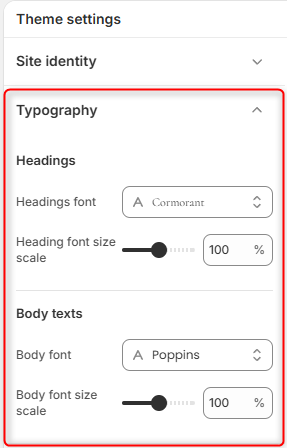
Headings
The Headings section controls the appearance of heading text across your store, including page titles, product titles, collection titles, blog titles, and section headings.
Headings font
Choose the font family used for all headings throughout your store.
A well-selected heading font helps establish your brand identity and improves the visual hierarchy of your pages.
Heading font size scale
Adjust the overall size of heading text using a percentage scale.
- Increase the value to make headings more prominent.
- Decrease the value to create a cleaner and more compact layout.
Tip: Avoid setting the heading size too large, as it may affect the balance of your page layout, especially on smaller screens.
Body texts
The Body texts section controls the typography used for general content across your store, including paragraphs, product descriptions, navigation menus, buttons, and other supporting text.
Body font
Choose the font family used for your store’s body text.
For the best reading experience, select a font that is clean, legible, and pairs well with your chosen heading font.
Body font size scale
Adjust the overall size of the body text throughout your store.
- Increase the percentage to improve readability.
- Decrease the percentage to display more content within the available space.
Recommendation: Keep body text at a comfortable reading size across both desktop and mobile devices.