

The Subscribe popup settings allow you to customize a popup that encourages visitors to subscribe to your email list.
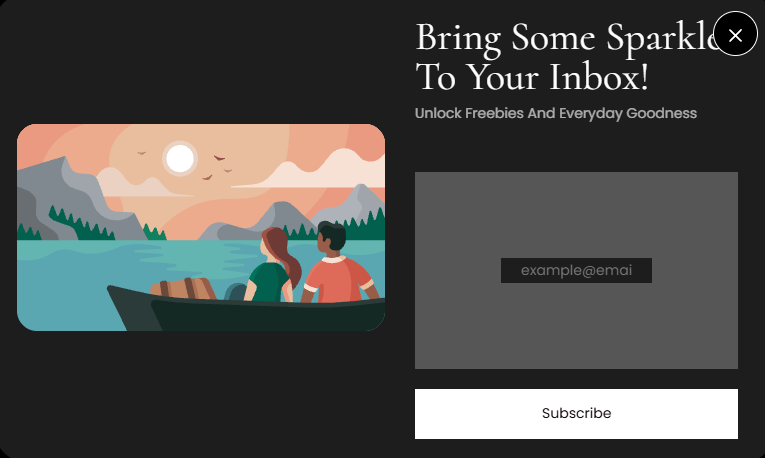
Steps
- In the theme editor, select Subscribe popup.
- Customize the available popup settings.
- Click Save to apply your changes.
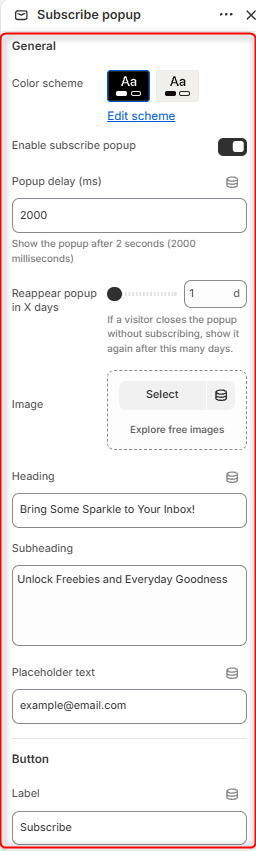
General
Color Scheme
Select the color scheme used for the subscribe popup.
You can choose from the available color schemes or click Edit scheme to customize the colors.
Enable Subscribe Popup
Enable this option to display the subscribe popup on your store.
Disable it if you do not want the popup to appear to visitors.
Popup Delay
Use Popup delay (ms) to control how long visitors must wait before the popup appears.
The value is entered in milliseconds.
Reappear Popup in X Days
Use this setting to control when the popup should appear again after a visitor closes it without subscribing.
Enter the number of days you want the popup to remain hidden before it is displayed again.
Image
Add an image to the subscribe popup.
Click Select to choose an image, or use Explore free images to browse available free images.
Heading
Use the Heading field to add the main title displayed in the popup.
Subheading
Use the Subheading field to add supporting text below the heading.
This can be used to encourage visitors to subscribe and explain the benefits of joining your mailing list.
Placeholder Text
Use the Placeholder text field to customize the text displayed inside the email input field.
Button
Label
Use the Label field to customize the text displayed on the subscribe button.