


The Header settings allow you to customize the appearance, layout, and functionality of your store’s header.
Steps
- In the theme editor, select Header
- Customize the available header settings
- Click Save to apply your changes
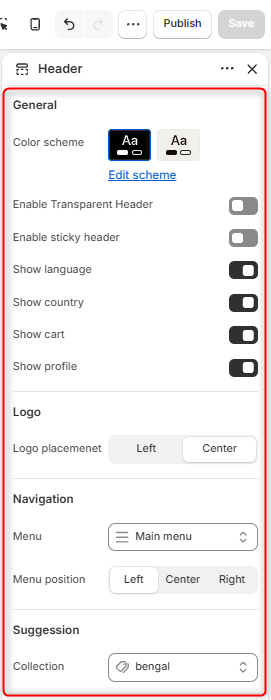
General
Color Scheme
Select the color scheme used for the header.
You can choose from the available color schemes or click Edit scheme to customize the colors.
Enable Transparent Header
Enable this option to make the header transparent.
When enabled, the header can blend with the content or image displayed behind it, creating a more seamless appearance.
Enable Sticky Header
Enable this option to keep the header visible at the top of the screen as visitors scroll down the page.
Show Language
Enable this option to display a language selector in the header.
Visitors can use this selector to choose their preferred language when multiple languages are available in your store.
Show Country
Enable this option to display a country or region selector in the header.
This allows visitors to select their preferred country or region when applicable.
Show Cart
Enable this option to display the shopping cart icon in the header.
Show Profile
Enable this option to display the customer profile or account icon in the header.
Logo
Logo Placement
Choose where the store logo is displayed in the header.
Available options include:
- Left — Displays the logo on the left side of the header.
- Center — Displays the logo in the center of the header.
Navigation
Menu
Select the menu you want to display in the header.
Use this setting to connect one of your store’s navigation menus, such as the Main menu.
Menu Position
Choose the position of the navigation menu within the header.
Suggestion
Collection
Select a collection to use for header suggestions.
This setting allows the theme to use products from the selected collection when displaying relevant suggestions.