

Location: Customizer > Media with text
Media with text overview
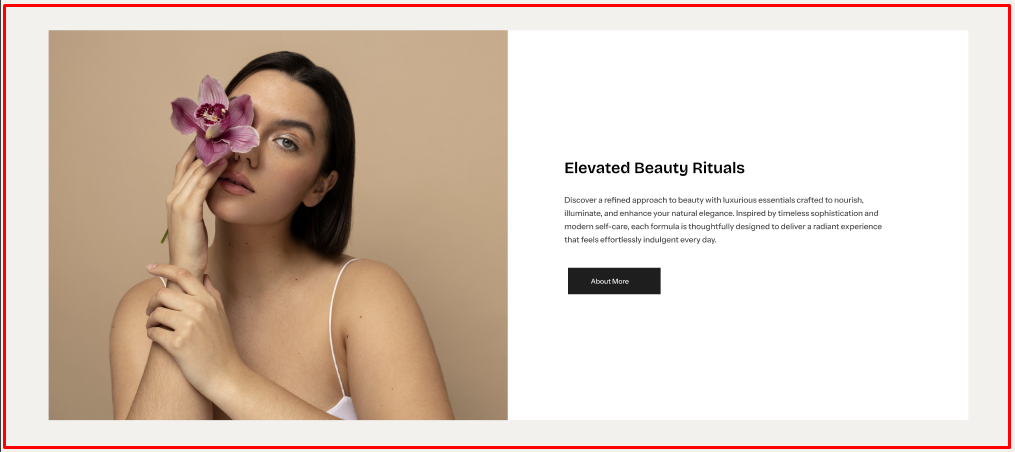
The Media with Text section combines media, text content, and an optional scrolling marquee to create an engaging content block.
General settings
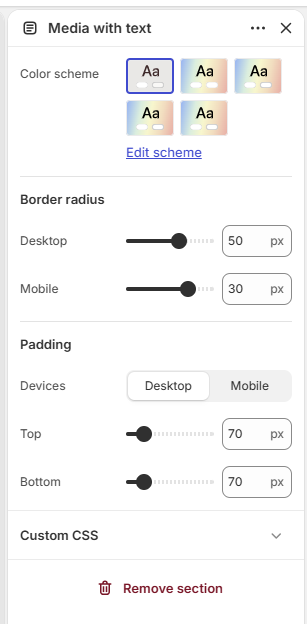
Color scheme: Select the color scheme for the section.
Border radius
- Desktop: Adjusts the corner rounding of the footer containers on desktop devices.
- Mobile: Adjusts the corner rounding of the footer container on mobile devices.
Padding
- Device: Choose whether to configure padding for Desktop or Mobile devices.
- Top: Set the top padding of the section from 0–500px.
- Bottom: Set the bottom padding of the section from 0–500px.
Marquee Block
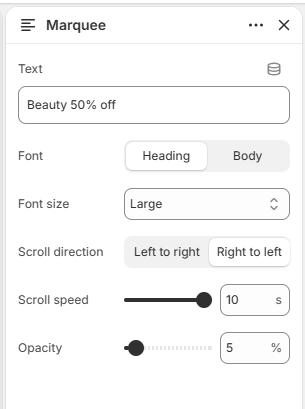
Text: Add the text to display in the scrolling marquee.
Font: Choose between Heading or Body font.
Font size: Select the marquee text size from Small, Medium, Large, X-Large, or XX-Large.
Scroll direction: Choose the marquee scrolling direction: Left to right or Right to left.
Scroll speed: Set the marquee scrolling speed from 1–10 seconds.
Opacity: Set the marquee text opacity from 0–100%.
Media Block
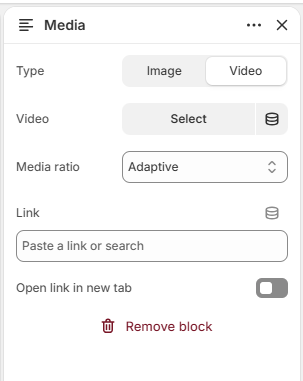
Type: Choose the media type: Image or Video.
Image: Select an image to display when Image is selected.
Video: Select a video to display when Video is selected.
Media ratio: Choose the media aspect ratio: Adapt to image, Square, Portrait, or Landscape.
Link: Add a link to the media.
Open link in new tab: Choose whether the media link opens in a new browser tab.
Text Block
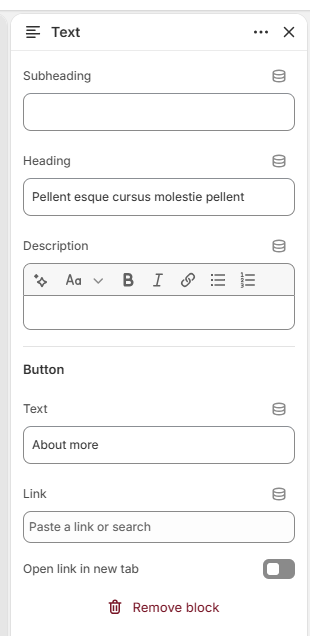
Subheading: Add a subheading to the text content.
Heading: Add the main heading for the content.
Description: Add supporting description text.
Button Label: Enter the text displayed on the button.
Button Link: Add the destination link for the button.
Open link in new tab: Choose whether the button link opens in a new browser tab.
Block Structure
Media with Text
└── Content
** ├── Marquee**
** ├── Media**
** └── Text**