

Location - Customiser > Template > FAQ
FAQ Overview
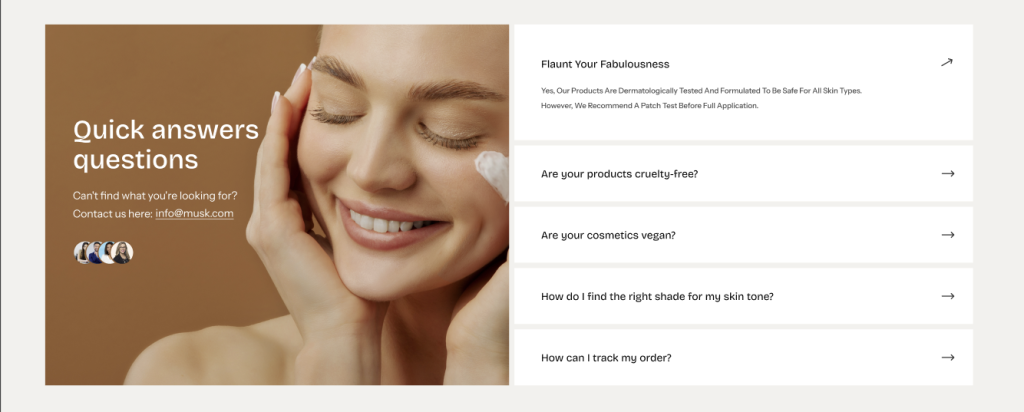
The FAQ section allows you to display frequently asked questions in an accordion layout with optional content, media, and categories.
FAQ Settings
General Settings
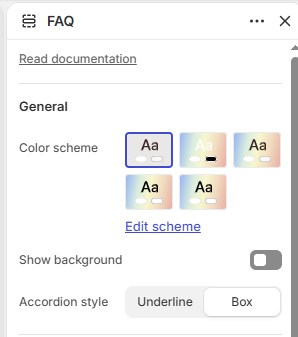
Color Scheme: Select the color scheme for the FAQ section.
Show Background: Enable or disable the section background.
Accordion Style: Choose the accordion style: Underline or Box.
Content
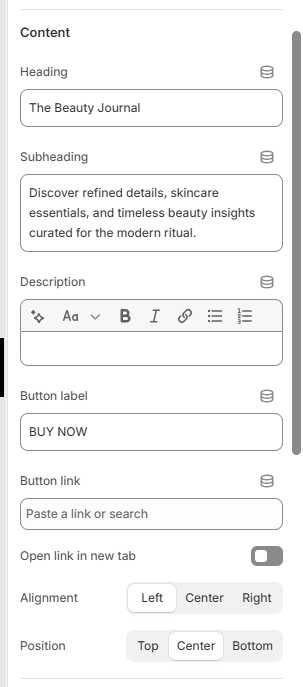
Heading: Add the main heading for the FAQ section.
Description: Add a description for the FAQ section.
Button Label: Add the text for the button.
Button Link: Add the destination link for the button.
Open link in new tab: Choose whether the button link opens in a new browser tab.
Alignment: Choose the content alignment: Left, Center, or Right.
Position: Choose the vertical position of the content: Top, Center, or Bottom.
Media
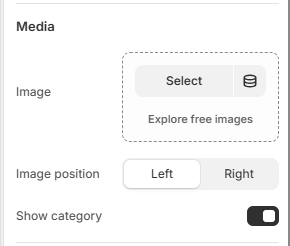
Image: Select an image to display alongside the FAQ content.
Image Ratio: Choose the image ratio: Adapt to image, Square, Portrait, or Landscape.
Image Position: Choose the image position: Left or Right.
Show Category: Enable or disable category labels in the FAQ section.
Border Radius
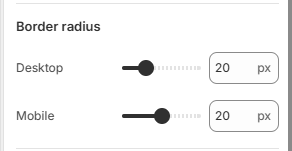
Desktop: Set the image border radius from 0–80px.
Mobile: Set the image border radius from 0–40px.
Padding
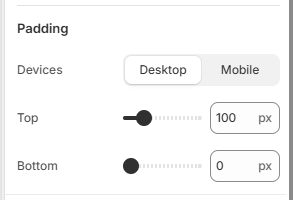
Device: Choose whether to configure padding for Desktop or Mobile devices.
Top: Set the top padding from 0–500px.
Bottom: Set the bottom padding from 0–500px.
Accordion Block
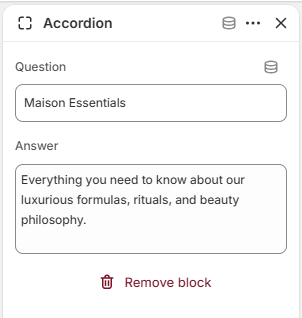
Question: Add the FAQ question.
Answer: Add the answer to the question.
Category Block
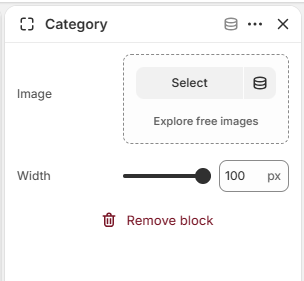
Image: Select an image for the category.
Width: Set the category image width from 50–100px.