

The Site Identity settings allow you to configure the logos and favicon used throughout your store. You can upload different logos for desktop and mobile devices, use an alternate logo for transparent headers, customize logo widths, and set a favicon to strengthen your brand identity.
Steps
- In the theme editor (Customize), click Theme settings.
- Select Site identity.
- Upload and configure your desktop, mobile, footer logos, and favicon.
- Save the changes.
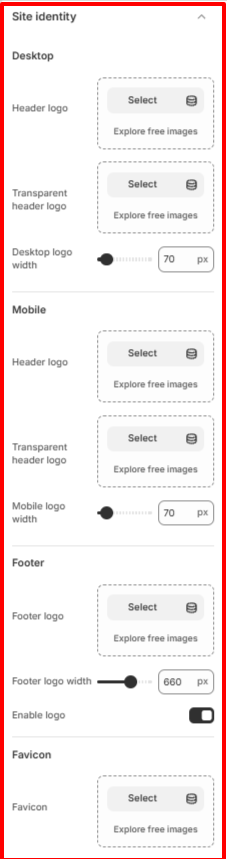
Desktop
Configure the logos displayed on desktop devices.
Header logo
Upload the primary logo that appears in the header on desktop screens.
Tips:
- Use a high-quality PNG or SVG with a transparent background for the best results.
- Choose a logo that remains clear at smaller sizes.
Transparent header logo
Upload an alternative logo that is displayed when the header uses a transparent background.
This is useful when:
- Your homepage banner has a dark background.
- The default logo does not provide enough contrast.
If left empty, the default header logo may be used depending on your header configuration.
Desktop logo width
Adjust the display width of the desktop header logo.
A larger value makes the logo appear bigger, while a smaller value creates a more compact header.
Recommendation: Increase or decrease the width until the logo looks balanced within the header.
Mobile
Configure how your branding appears on mobile devices.
Header logo
Upload the logo displayed in the mobile header.
You can upload a different version of your logo that’s optimized for smaller screens if needed.
Transparent header logo
Upload the logo used when the mobile header is transparent.
Using a separate transparent logo ensures your branding remains visible over banners or hero images.
Mobile logo width
Adjust the width of the logo displayed on mobile devices.
Since mobile screens have limited space, a slightly smaller logo generally provides a cleaner appearance.
Footer
Configure the branding displayed in your store’s footer.
Footer logo
Upload the logo that appears in the footer section.
Many merchants use a monochrome or simplified version of their logo to better match the footer design.
Footer logo width
Control the display width of the footer logo.
Adjust this setting until the logo fits naturally within your footer layout without overpowering other content.
Enable logo
Turn this option on to display the footer logo.
- Enabled: Shows the uploaded footer logo.
- Disabled: Hides the footer logo from the footer.
Favicon
Favicon
Upload a favicon for your store.
The favicon is the small icon displayed:
- In browser tabs
- In bookmarks
- In some mobile browser interfaces
For the best appearance, use a square image with a high resolution.
Tip: For a consistent brand experience, use the same logo style across your header, footer, and favicon while ensuring each version is optimized for its intended size and background.