


The Announcement bar allows you to display promotional messages, important information, or announcements at the top of your store.
You can add multiple announcement messages and customize their appearance and display style.
How to customize the Announcement Bar
Steps
- In the theme editor, select Sections
- Still in the left sidebar, locate the Header area
- Select Announcement bar to open its settings
- Carry out the desired changes
- Save
Announcement Bar Configurations
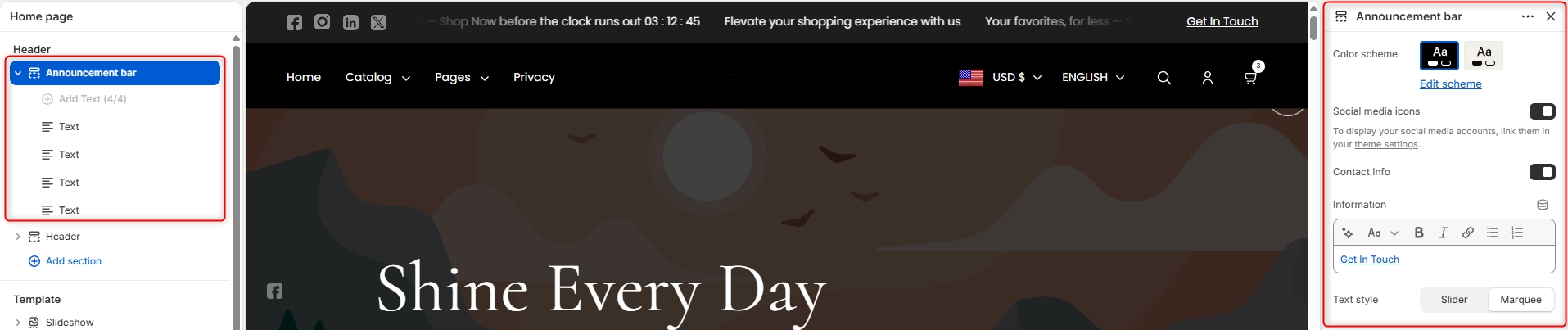
Color Scheme
Select the color scheme used for the announcement bar.
The available color schemes are configured in the theme’s global color settings.
Click Edit scheme to modify the colors associated with the selected color scheme.
Social media icons
Enable this option to display your store’s social media icons in the announcement bar.
To display your social media accounts, make sure the relevant social media links have been added in the Theme Settings > Social Media area.
Contact Info
Enable this option to display your store’s contact information in the announcement bar.
Information
The Information field is used to enter the contact or other information you want to display.
Text Style
Choose how multiple announcement messages are displayed. You can have the display as either:
- Slider: Displays one announcement at a time and rotates between the available messages.
- Marquee: Displays announcements as continuously scrolling text across the announcement bar.
Announcement Bar Blocks

The Announcement Bar supports up to 4 Text blocks.
Each Text block can be used to add a separate announcement or message.
Text
The text field in the Text block allows you to add the text you desire to render on the announcement bar.