

Location: Customizer > Header
Header Overview
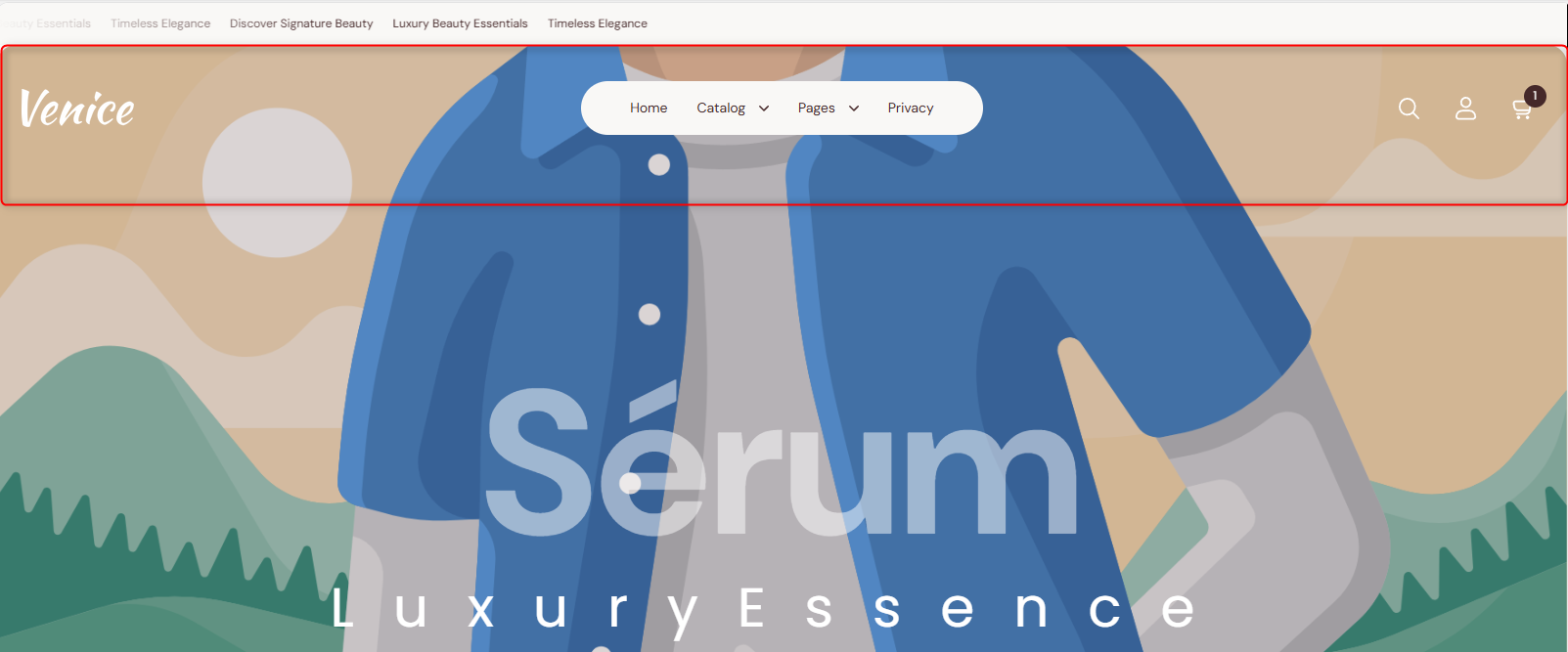
The header section is displayed at the top of your store pages. It is mainly used to render menu navigation items, the search icon, the account icon, the cart icon, and the logo.
Header Settings
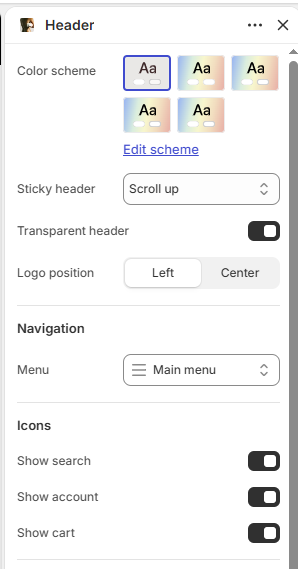
Color scheme: Select the color scheme for the header.
Sticky header: Choose how the header behaves when scrolling: Sticky, Scroll up, or None.
Transparent header: Enable or disable the transparent header style.
Logo position: Choose the logo position: Left or Center.
Navigation
Menu: Select the navigation menu to display in the header.
Icons
Show search: When enabled, the search icon is displayed in the header.
Show account: When enabled, the account icon is displayed in the header.
Show cart: When enabled, the cart icon is displayed in the header.
Search popup
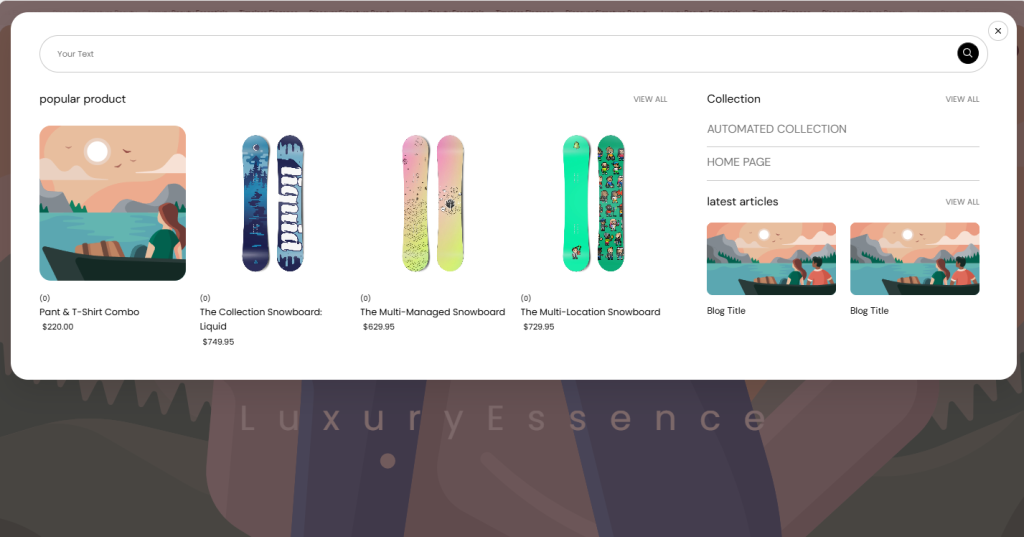
The Search Popup settings allow you to customize the appearance and content displayed in the search popup.
Color scheme: Select the color scheme for the search popup.
Products: Select a collection to display product suggestions in the search popup.
Collection: Select a collection to display in the search popup.
Article: Select an article to display in the search popup.
Padding
Devices: Choose whether to configure padding for Desktop or Mobile devices.
Top: Set the top padding of the section from 0–500px.
Bottom: Set the bottom padding of the section from 0–500px.
Configurable Blocks in the Header Section
Mega menu
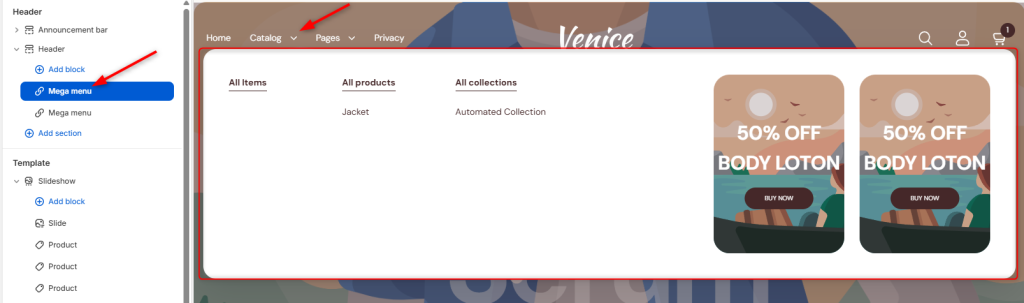
Allows you to create a large, customizable dropdown menu that can display multiple menu items under a primary navigation item. It can also be used to showcase featured products, promotional content, images, banners, and other custom elements to enhance site navigation and visibility.
Mega menu Settings
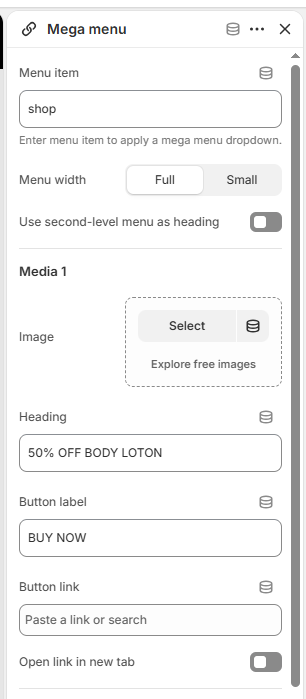
The Mega Menu block allows you to create a dropdown menu with promotional media, headings, and buttons.
Menu item: Enter the menu item to which the mega menu dropdown should be applied.
Menu width: Choose the mega menu width: Full or Small.
Use second-level menu as heading: Enable or disable displaying second-level menu items as headings.
Media 1 / Media 2
Image: Select an image to display in the mega menu.
Heading: Add a heading for the promotional media.
Button label: Add the text for the promotional button.
Button link: Add the destination link for the button.
Open link in new tab: Choose whether the button link opens in a new browser tab.