

Location- Customizer > Search > Template > Search Results
Search Results Overview
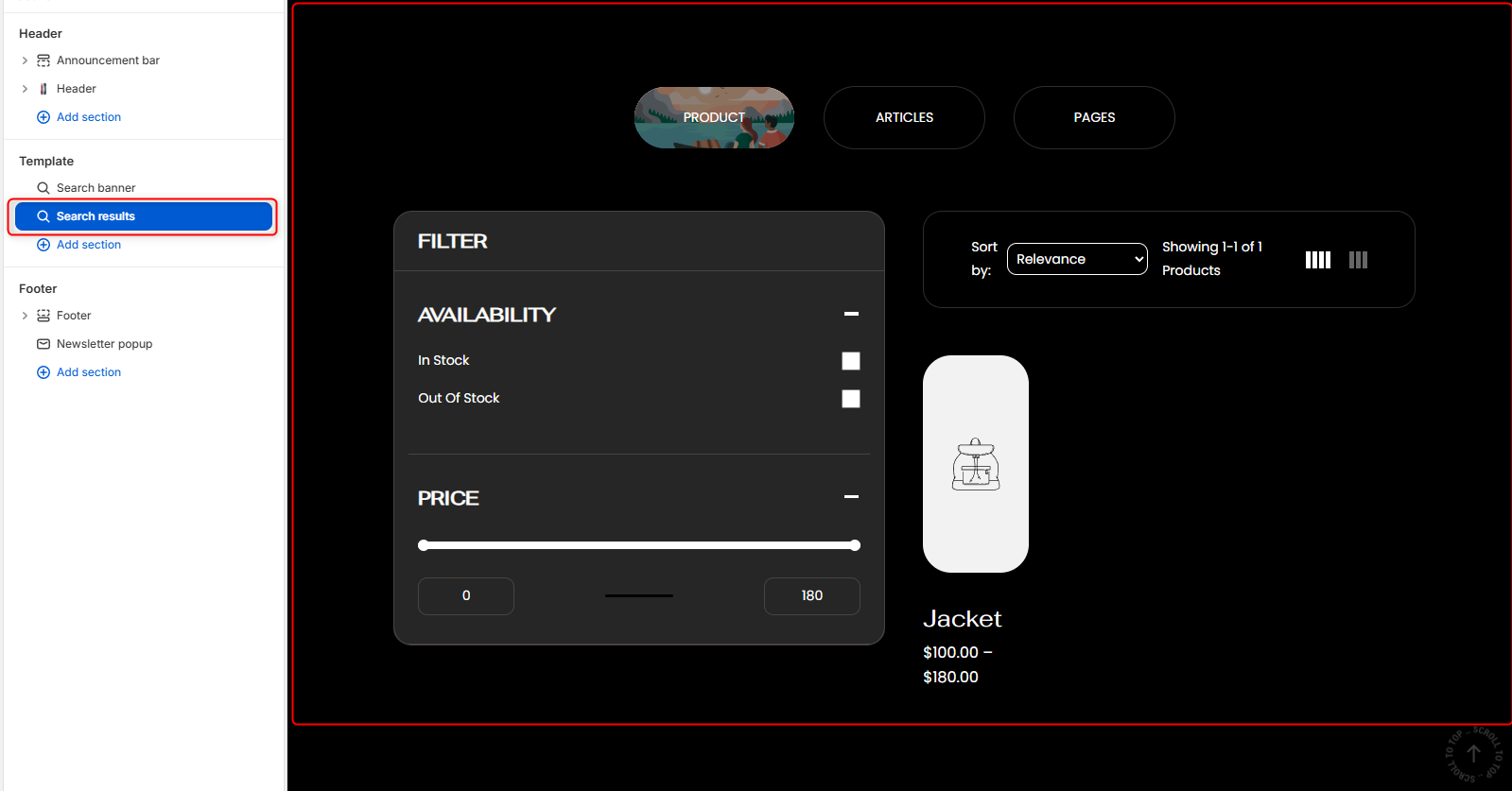
The search Result section is the section where the search results would appear once a search is performed. It supports searching across products, articles, and pages while providing filtering and sorting capabilities to help customers quickly find relevant content.
Section Settings
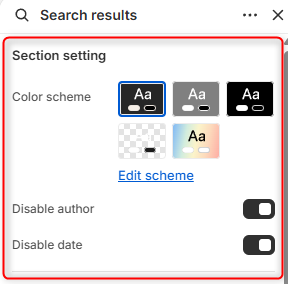
- Color Scheme: Enables you to edit and select the color scheme applied to the entire Search Results section.
- Disable author: When enabled, author information is hidden from article search results.
- Disable date: When enabled, publication dates are hidden from article search results.
Tab Image
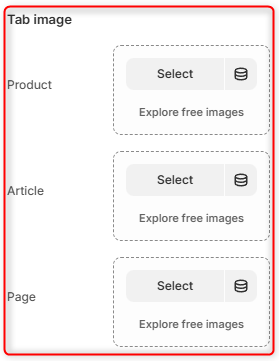
- Product: Here you can upload an image to represent the Products search tab when active.
- Article: Allows you to set an image to represent the Articles search tab when active.
- Page: Enables you to upload an image to represent the Pages search tab when active.
404
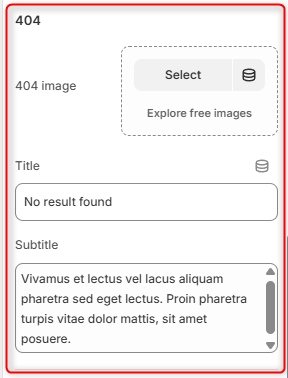
- 404 Image: Here you can upload an image to display when a search returns no results.
- Title: Defines the primary message displayed when no results are found.
- Subtitle: Here you can add text to provides additional context or guidance.
Spacing (desktop)
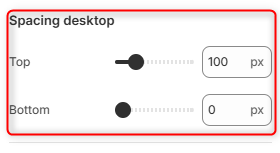
Top: Controls the amount of spacing above the Search Results section on desktop devices.
Bottom: Controls the amount of spacing below the Search Results section on desktop devices.
Spacing (mobile)
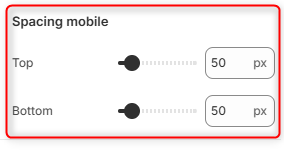
Top: Controls the amount of spacing above the Search Results section on mobile devices.
Bottom: Controls the amount of spacing below the Search Results section on mobile devices.