

The Colors settings allow you to define the color palette used throughout your store. By creating and customizing color schemes, you can maintain a consistent brand identity while controlling the appearance of sections, buttons, badges, forms, and other interface elements.
Most sections in the Ruby theme allow you to choose a color scheme, making it easy to reuse the same colors across multiple areas of your storefront.
Steps
- In the theme editor (Customize), click Theme settings.
- Select Colors.
- Configure your color schemes and other color settings.
- Save the changes.
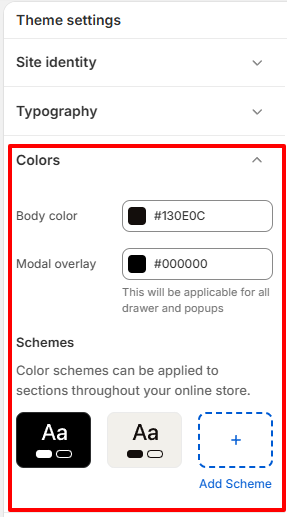
Body Color
The Body color setting controls the default background color of your storefront. It serves as the foundation for your site’s overall appearance and is visible wherever a section does not define its own background color.
Choose a color that complements your branding while providing sufficient contrast for content.
Modal Overlay
The Modal overlay setting controls the color displayed behind popups, drawers, quick views, and other modal windows.
A darker overlay helps direct the customer’s attention to the active modal while subtly dimming the rest of the page.
Schemes
Color schemes allow you to create reusable collections of colors that can be applied throughout your storefront. Instead of configuring colors for each section individually, you can assign a color scheme to supported sections for a consistent design.
Changes made to a color scheme are automatically reflected in every section using that scheme.