

Location- Customiser > Template > Image With Text Overlay
Image With Text Overlay Overview
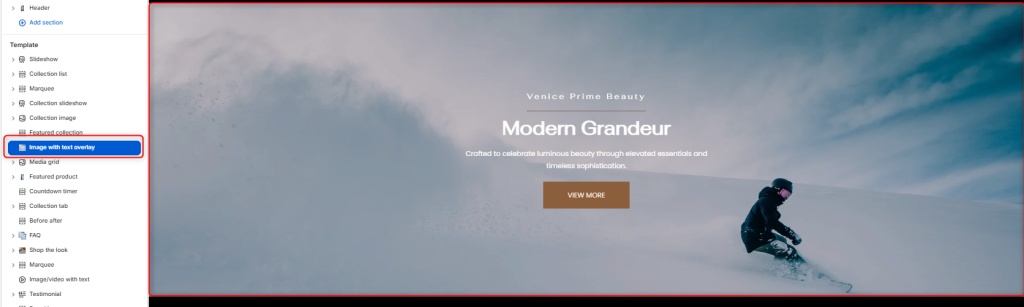
The Image with Text Overlay section allows you to showcase an image or video with text content and a call-to-action button layered directly on top of the media. This section is ideal for highlighting promotions, showcasing campaigns, or creating visually engaging banners that encourage customers to take action.
Image With Text Overlay Settings
General Settings
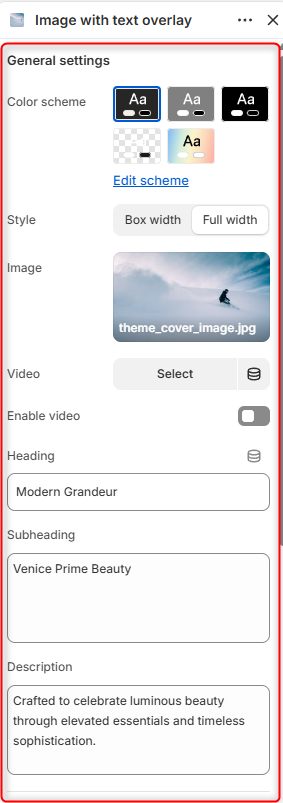
- Color Scheme: Enables you to edit or select a predefined color palette to be applied to the section.
- Style: Allows you to specify whether to render the section as a boxed or full-width layout.
- Image: Here you can upload an image to display as the background of the section.
- Video: Here, you can upload a video to be rendered in the section in case you want to have a video instead of an Image.
- Enable Video: Toggles the video display on the section instead of the image.
- Heading: Defines the primary title displayed on the overlay.
- Subheading: This field enables you to add supportive text that is rendered above the main section heading.
- Description: Here you can add descriptive text, such as details about your store products that will be rendered beneath the main heading.
Button
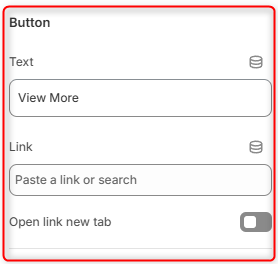
- Text: Add the label to be rendered on the button.
- Link: Set the URL that the button is to link to once clicked.
- Open link in new tab: Determines how the button link is opened. Either in a new browser tab when enabled, or the current browser tab if not enabled.
Spacing desktop
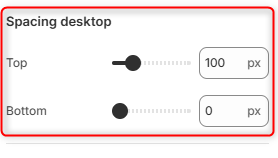
Top: Adjusts the space above the Image with Text Overlay section on desktop screens.
Bottom: Controls the space below the Image with Text Overlay section on desktop screens.
Spacing mobile
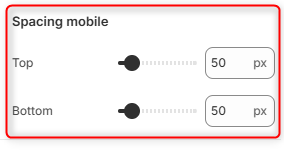
Top: Controls the space above the Image with Text Overlay section on mobile screens.
Bottom: Controls the space below the Image with Text Overlay section on mobile screens.